# Dashboard metrics
> Each block of the Dashboard answers one question: what is left to match, how much is overdue, what came in during the period and how much of it is matched, how far matching is, who is late, and what happened last. This page explains what each number counts, what it leaves out, and how the amounts add up, with an example.
Source: https://www.invunion.com/knowledge-base/dashboard-metrics/
Last updated: 2026-11-17
Each block of the [Dashboard](https://www.invunion.com/knowledge-base/dashboard/) answers one question. The amounts on this page are an example.
## Needs you: Matching
**What is left to match?**
The left side of the card counts what is not fully matched yet:
| Figure | What it counts |
| --- | --- |
| **Invoices to match** | The invoices you issued that are unpaid, partially paid or overdue. Below, the amount still open on them. |
| **Bank lines to match** | The bank lines in the reconciliation scope that are not fully matched. Below, the amount not assigned yet. |
This card always shows today's situation. It does not follow the period.
Select **Open Match inbox**. Invunion shows you its suggestions, one invoice and one payment at a time:
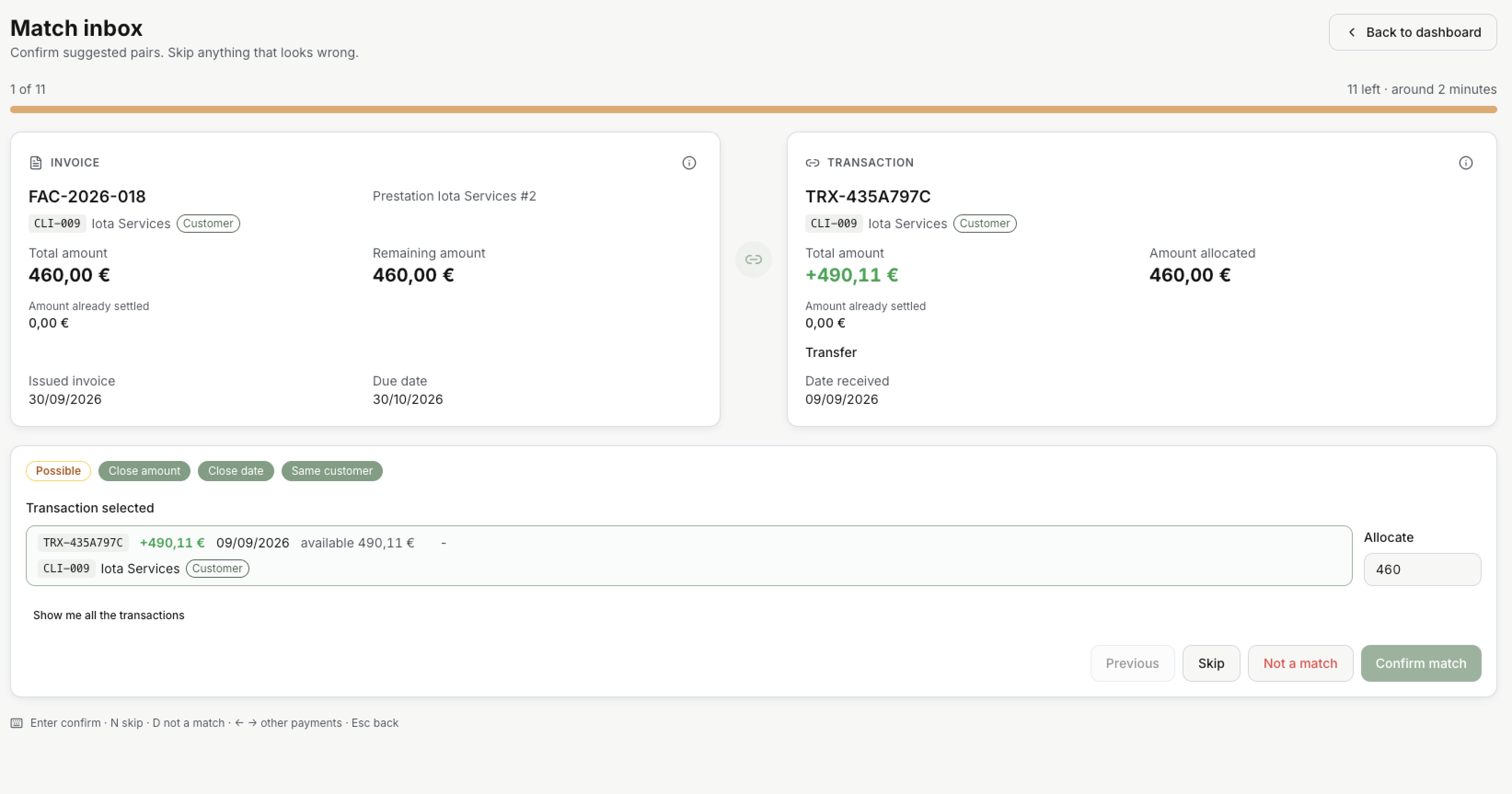 1. At the top, where you are: here **1 of 11**, with about 2 minutes left.
2. On the left, the invoice and what is still due. On the right, the payment Invunion suggests.
3. The badges say why this pair: how sure Invunion is, such as Possible, and what fits, such as **Close amount**, **Close date** or **Same customer**. See [Match levels](https://www.invunion.com/knowledge-base/match-levels/).
4. **Allocate** is the part of the payment that goes to this invoice. Here 460 of the 490,11 €. You can change it.
5. Choose what to do:
| Button | Key | What it does |
| --- | --- | --- |
| **Confirm match** | Enter | Matches the payment to the invoice, and goes to the next pair. |
| **Skip** | N | Leaves this pair for later. |
| **Not a match** | D | Invunion will not suggest this payment for this invoice again. |
| **Previous** | | Goes back to the pair before. |
**Show me all the transactions** lists other payments you can pick instead. The arrow keys ← → move between them. It also lists the pairs you marked **Not a match**: select one to restore it. **Esc** or **Back to dashboard** takes you back.
You can also match outside the inbox, and undo a match. See [Matching](https://www.invunion.com/knowledge-base/matching/#where-you-can-match) and [Unmatch](https://www.invunion.com/knowledge-base/unmatch/).
When nothing is left, the inbox says **You're caught up**.
### Auto-match
**What did Invunion match by itself?**
The right side of the card counts the matches Invunion made or suggested by itself, from the start:
| Figure | What it counts |
| --- | --- |
| **Auto-matches** | Every match Invunion made or suggested by itself. |
| **By Invunion** | The ones Invunion confirmed, and that are still in place. |
| **By a person** | The ones Invunion suggested and a person confirmed. |
| **Accuracy** | The share of auto-matches that were kept, among those already decided. The ones a person rejected or undid count against it. The suggestions still waiting are left out. |
Below, the card says how many **suggestions** are **waiting for review**. Select **Review suggestions** to open them on the [Matching page](https://www.invunion.com/knowledge-base/matching-page/).
At the bottom, **Last run** says when Auto-match last ran. **Run auto-match** runs it again without waiting for the next import. You need **Manage** on **Matching**. See [Run Auto-match now](https://www.invunion.com/knowledge-base/auto-match/#run-auto-match-now).
## Needs you: Overdue
**How much is late?**
The card shows the amount still due on the invoices past their due date, including VAT. Below, the number of overdue invoices and the same amount excluding VAT.
The bar splits the amount by age: **Up to 30 days**, **31–60 days** and **Over 60 days** after the due date, with the number of invoices in each.
Select the amount, or the button below it, such as **See the 5 invoices**, to open all overdue invoices in [Invoices issued](https://www.invunion.com/knowledge-base/invoices-issued/).
An invoice is overdue the day after its due date, if something is still due. See [When is an invoice overdue?](https://www.invunion.com/knowledge-base/invoice-status-credit-notes/#when-is-an-invoice-overdue)
This card always shows today's situation. It does not follow the period.
## Overview
**What came in during the period, and how much of it is matched?**
The block has two columns: **Invoices issued** and **Bank lines considered**. Each column shows its total and its count, then a percentage with a bar, then four amounts.
### Invoices issued
The total is the amount, including VAT, of the invoices issued in the period. Cancelled invoices and credit notes are not counted.
The percentage is the share of these invoices that are fully paid. For example **108 of 122 invoices matched with transactions**, so **89 %**.
| Line | What it shows |
| --- | --- |
| **Total amount matched** | What is already settled on these invoices, by payments and by credit notes. |
| **Pending amount** | What is still due on them. |
| **Credit notes sent** | The credit notes paid back to customers in money. |
| **Net total** | What you invoiced, minus **Credit notes sent**. |
In the example: 683 611,99 € matched + 61 563,22 € pending = 745 175,21 € net total. No credit note was paid back, so the net total is the full amount invoiced.
**Credit notes sent** only counts the credit notes refunded by bank transfer. A credit note used on another invoice, or still available, is not deducted. See [Credit notes](https://www.invunion.com/knowledge-base/invoice-status-credit-notes/#credit-notes).
### Bank lines considered
The total is the amount of the bank lines of the period that Invunion tries to match. Only the lines in the reconciliation scope count. Ignored lines are left out. See [Status and scope](https://www.invunion.com/knowledge-base/transaction-status-scope/).
The percentage is the share of these lines that are fully matched. For example **118 of 136 transactions matched with invoices**, so **87 %**.
The four amounts only count the money **received**:
| Line | What it shows |
| --- | --- |
| **Total amount matched** | The part of the payments already matched to invoices. |
| **Pending amount** | The part not matched to an invoice yet. |
| **Credit notes sent** | The money that went out to refund a credit note. |
| **Net total** | What you received, minus **Credit notes sent**. |
In the example: 683 611,99 € matched + 8 085,75 € pending = 691 697,74 € net total.
**Total amount matched** is the same on both sides: it is the money that links an invoice to a payment. **Pending amount** is not. On the invoice side it is what customers still owe. On the bank side it is money received that Invunion has not placed on an invoice yet.
How a match is made is explained in [Matching](https://www.invunion.com/knowledge-base/matching/) and [Match levels](https://www.invunion.com/knowledge-base/match-levels/).
## Revenue overview
**How fast are invoices paid?**
The chart adds up, day after day, what was invoiced in the period:
- **Invoiced**: the total of the invoices issued so far.
- **Settled**: how much of those invoices is settled.
The closer the two lines, the less is still due. The gap between them at the end is the **Pending amount** of **Invoices issued**.
For a period of 45 days or less, the chart shows one point per day. Above that, one point per month.
## Matching progress
**How far is matching for the period?**
The block has one bar for the **Invoices** and one for the **Bank lines** of the period. Above each bar, for example **112 of 122 matched**: the fully and the partially matched ones together.
| Figure | Invoices | Bank lines |
| --- | --- | --- |
| **Matched** | Nothing is due anymore. | The whole amount is matched to invoices. |
| **Partially** | Part is paid. The rest is still due. | Part of the amount is matched. The rest is in **Remaining**. |
| **To process** | Nothing is settled yet. | No invoice is matched yet. |
Select a figure to open the list. **Open Matching** opens the [Matching page](https://www.invunion.com/knowledge-base/matching-page/).
## Overdue by customer
**Who is late?**
The table lists the five customers with the most overdue, the highest amount first.
| Column | What it shows |
| --- | --- |
| **Customer** | The name of the customer. **No customer named** groups the overdue invoices without a customer. |
| **Invoices** | How many of its invoices are overdue. |
| **Oldest late** | The number of days since the oldest due date that is not paid. |
| **Open amount** | What is still due on these invoices, with a bar for its share of the total overdue. |
Select a line to open the page of the customer. **View all** opens all overdue invoices in [Invoices issued](https://www.invunion.com/knowledge-base/invoices-issued/).
This table always shows today's situation. It does not follow the period.
## Recent Activity
**What happened last?**
The last four events, newest first:
| Event | Meaning |
| --- | --- |
| **Match confirmed** | An invoice was matched to a payment. |
| **Invoice created** | An invoice was added, by import, API or by hand. |
| **Transaction received** | A new bank line came in. |
Select a line to open its list.
This block always shows the last events. It does not follow the period.
## Bank accounts connected
**Which accounts send their statements?**
The card lists, bank by bank, the accounts that deliver their statements by SFTP or file drop, with the date of the last **Sync**. **SFTP / file drop** opens the settings of these deliveries. See [Automatic statements](https://www.invunion.com/knowledge-base/automatic-statements/).