# Dashboard
> The Dashboard is the first page you see in Invunion. It starts with what needs you now: the invoices and bank lines waiting for a match, and the overdue invoices. Below, it shows what was invoiced, received and matched in the period you choose at the top right. Select a number to open the list behind it, already filtered, and export it as a CSV file.
Source: https://www.invunion.com/knowledge-base/dashboard/
Last updated: 2026-11-17
The Dashboard is the first page you see. It starts with what needs you now: what is waiting for a match, and what is overdue. Below, it shows what was invoiced, received and matched in the period you choose.
Select any number to see what is behind it.
## What you see
From top to bottom:
| Block | What it shows |
| --- | --- |
| **Needs you**: **Matching** | The invoices and the bank lines still waiting for a match, with a button to open the Match inbox. On the right, what Auto-match did, and a button to run it again. |
| **Needs you**: **Overdue** | The amount still due on the invoices past their due date, split by age. |
| **Overview** | The period in two columns: **Invoices issued** and **Bank lines considered**. Each shows its total, how much is matched and how much is pending. |
| **Revenue overview** | A chart of what you invoiced and what was settled, over the period. |
| **Matching progress** | The invoices and the bank lines of the period: matched, partially matched, or still to process. |
| **Overdue by customer** | The five customers with the most overdue. |
| **Recent Activity** | The last matches, invoices and transactions. |
| **Bank accounts connected** | The bank accounts that send their statements by SFTP or file drop, with their last sync. |
Each block is explained in [Dashboard metrics](https://www.invunion.com/knowledge-base/dashboard-metrics/). Next to some titles, gives the same explanation in the app.
**Last updated** shows when the numbers were computed. Select to compute them again.
## Choose the period
The picklist at the top right decides which invoices and bank lines are counted. By default it is **This & previous fiscal year**. The title of the **Overview** block repeats the period, for example **Overview · This month**.
| Period | What it counts |
| --- | --- |
| **This month** | From the 1st of this month to today. |
| **Last 3 months** | This month and the two months before it, from the 1st. In mid-October: 1 August to today. |
| **This year** | From 1 January to today. |
| **This fiscal year** | From the start of your fiscal year to today. |
| **Previous fiscal year** | The whole fiscal year before this one. |
| **This & previous fiscal year** | Both together. |
| **Personalized** | The dates you pick. At most 12 months. |
Your fiscal year starts in the month set in [Accounting](https://www.invunion.com/knowledge-base/accounting/). It is January unless you changed it.
Invoices count by their **issue date**. Bank lines count by their **date**. For example, choose **This month**: an invoice issued last month is not counted, even if it was paid today.
### What the period does not change
Three blocks follow the period: **Overview**, **Revenue overview** and **Matching progress**.
The others always show the situation **today**, whatever the period:
- **Needs you**: everything still to match, and every invoice overdue today. The Auto-match figures count from the start.
- **Overdue by customer**: every invoice overdue today.
- **Recent Activity**: the last events.
- **Bank accounts connected**: the accounts connected today.
An invoice issued two years ago and still unpaid stays in **Overdue**, even with **This month** selected.
## See the detail behind a number
Select a number, and Invunion opens the list behind it, with the filters already set.
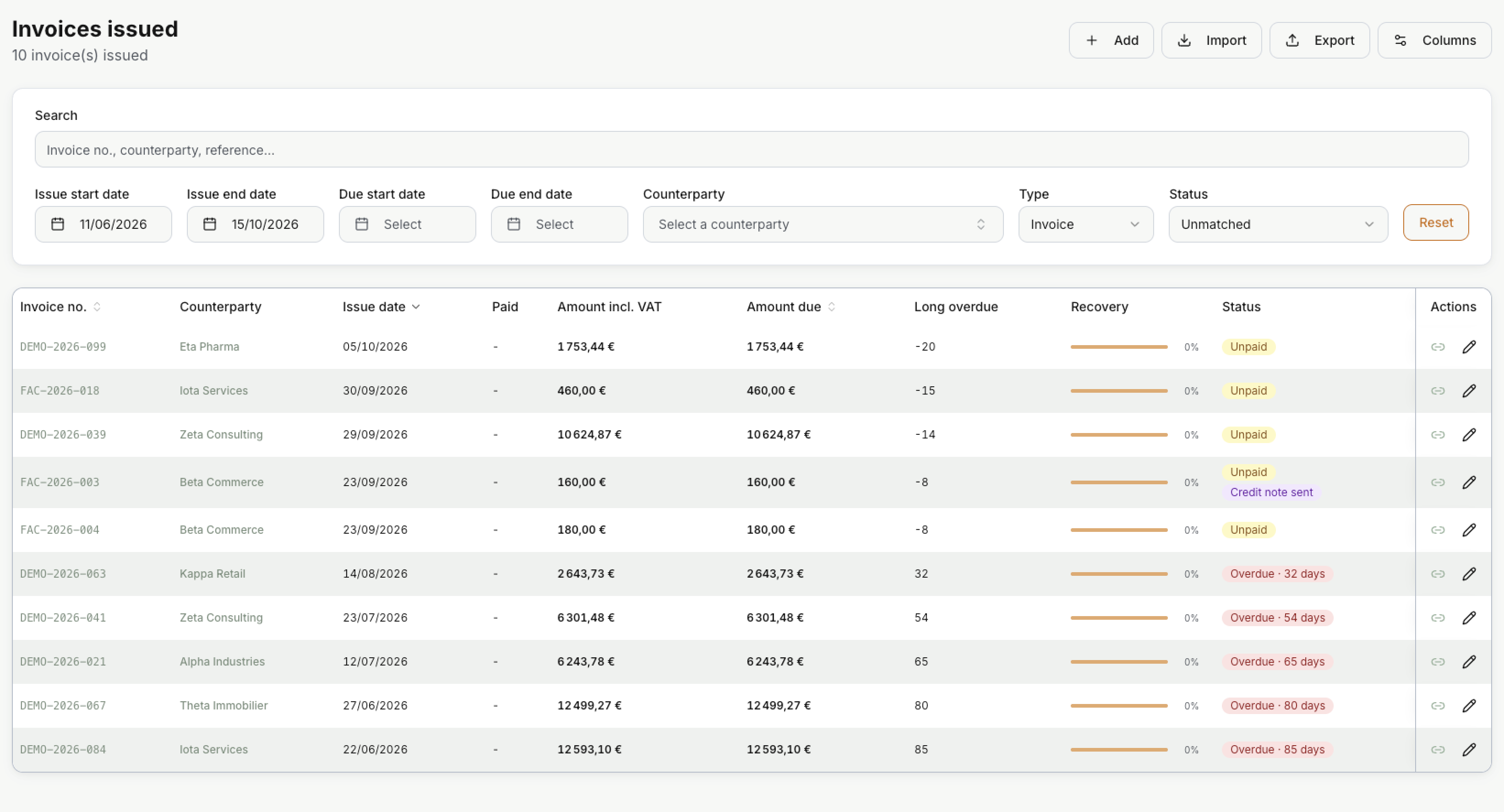
For example, in **Matching progress**, select **To process** under **Invoices**. Invunion opens **Invoices issued** with **Type** set to **Invoice**, **Status** set to **Unmatched**, and the dates of the period:
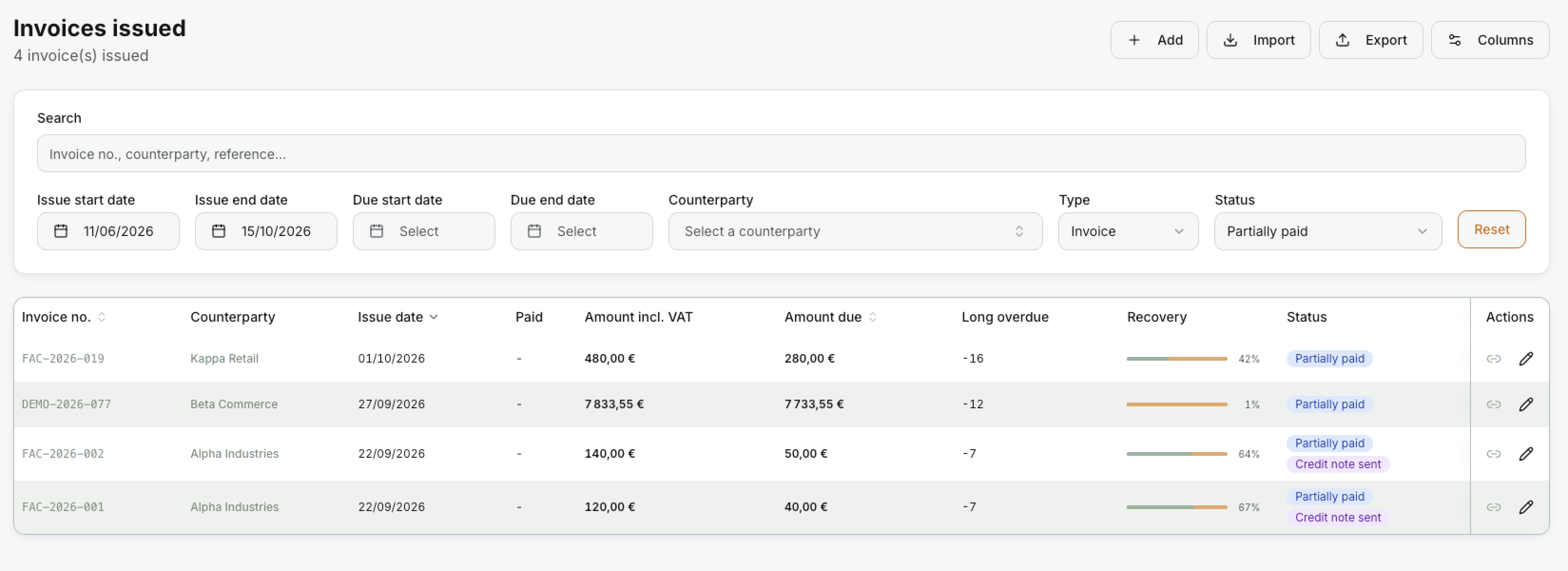
Select **Partially**, and the same list shows the invoices that are Partially paid:
What each number opens:
| Select | Opens |
| --- | --- |
| **Invoices to match**, **Bank lines to match** or **Open Match inbox**, in **Matching** | The Match inbox, to match what is left. You need access to Matching. |
| **Auto-matches**, **By Invunion**, **By a person**, **Accuracy** or **Review suggestions**, in **Matching** | The [Matching page](https://www.invunion.com/knowledge-base/matching-page/), with the status already set. |
| The amount, or the button below it, in **Overdue** | [Invoices issued](https://www.invunion.com/knowledge-base/invoices-issued/), on the Overdue invoices. |
| A total or a line under **Invoices issued**, in **Overview** | Invoices issued, on the invoices or the credit notes behind the number, in the period. |
| A total or a line under **Bank lines considered**, in **Overview** | [Transactions](https://www.invunion.com/knowledge-base/transactions/), on the lines in the reconciliation scope behind the number, in the period. |
| **Matched**, **Partially** or **To process** in **Matching progress** | Invoices issued or Transactions, on the lines with that status, in the period. |
| A line in **Overdue by customer** | The page of the customer. See [Overview page](https://www.invunion.com/knowledge-base/counterparty-overview/). |
| **View all** in **Overdue by customer** | Invoices issued, on the Overdue invoices. |
| A line in **Recent Activity** | The list it belongs to. |
### Download the detail
Select **Export** at the top of the list. Invunion downloads the lines you see as a CSV file, with the filters and the columns you chose.
To add a column before you export, such as **Due date**, use **Columns**.
You can change any filter after you arrive. The Dashboard is not affected.
 Select **Partially**, and the same list shows the invoices that are Partially paid:
 What each number opens:
| Select | Opens |
| --- | --- |
| **Invoices to match**, **Bank lines to match** or **Open Match inbox**, in **Matching** | The Match inbox, to match what is left. You need access to Matching. |
| **Auto-matches**, **By Invunion**, **By a person**, **Accuracy** or **Review suggestions**, in **Matching** | The [Matching page](https://www.invunion.com/knowledge-base/matching-page/), with the status already set. |
| The amount, or the button below it, in **Overdue** | [Invoices issued](https://www.invunion.com/knowledge-base/invoices-issued/), on the Overdue invoices. |
| A total or a line under **Invoices issued**, in **Overview** | Invoices issued, on the invoices or the credit notes behind the number, in the period. |
| A total or a line under **Bank lines considered**, in **Overview** | [Transactions](https://www.invunion.com/knowledge-base/transactions/), on the lines in the reconciliation scope behind the number, in the period. |
| **Matched**, **Partially** or **To process** in **Matching progress** | Invoices issued or Transactions, on the lines with that status, in the period. |
| A line in **Overdue by customer** | The page of the customer. See [Overview page](https://www.invunion.com/knowledge-base/counterparty-overview/). |
| **View all** in **Overdue by customer** | Invoices issued, on the Overdue invoices. |
| A line in **Recent Activity** | The list it belongs to. |
### Download the detail
Select **Export** at the top of the list. Invunion downloads the lines you see as a CSV file, with the filters and the columns you chose.
To add a column before you export, such as **Due date**, use **Columns**.
You can change any filter after you arrive. The Dashboard is not affected.