Browse documentation
Notifications
Settings > Administration > Notifications. Notification rules choose what Invunion tells you about, who receives it, and when. You can open it with the Settings permission. With View only, the page is read-only.
How the rules work
Each notification is a rule. A rule does three things:
- What: the events it reports, such as invoice settled or match suggested.
- When: instantly, or as a daily, weekly or monthly summary.
- Who: Entity members, other email addresses, and Slack or Microsoft Teams channels.
An Entity can have several rules, for example a daily summary for the finance team and an instant alert in a Slack channel for overdue invoices. If you have none yet, the page offers four starting points: Daily summary, Invoice paid, Overdue invoices and Bank account changes.
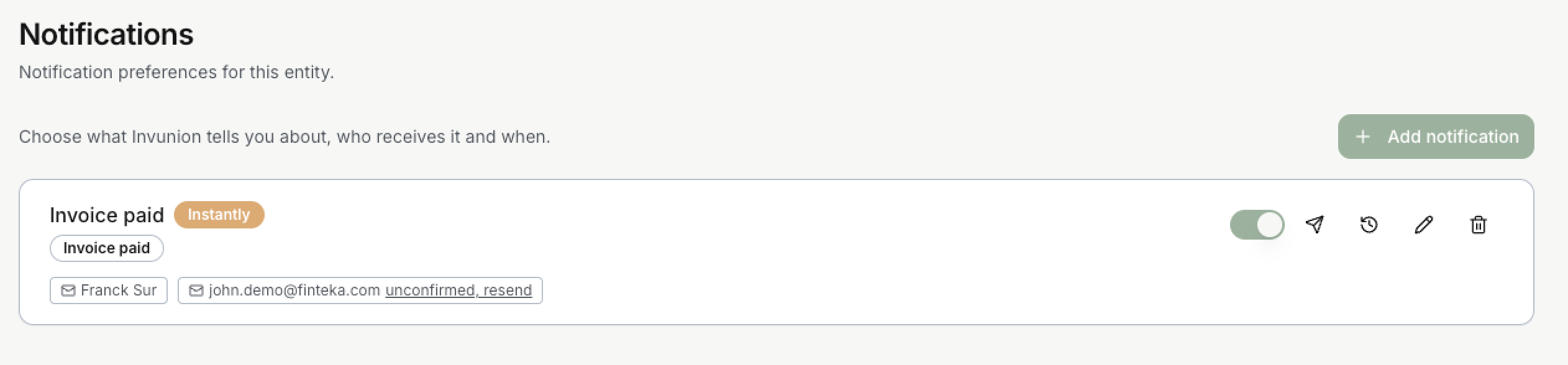
Each rule is one card. It shows the name, when it is sent, the events and the recipients. The switch turns the rule on or off. The icons on the right send a test, open the history, edit and delete. An outside address that has not confirmed yet shows unconfirmed, resend.
Add a notification
Select Add notification. The rule form has these fields.
| Field | What it does |
|---|---|
| Name | A label for you, for example “Invoice paid”. |
| Notify me about | One or more events. The list is below. If you tick Invoice overdue, the field Days after the due date appears. |
| When | Instantly, or a daily, weekly or monthly summary. |
| Filters (optional) | Narrow the rule, for example with a minimum amount. |
| Recipients | Who receives the message. |
| Message language | The language of the message. |
| Customize the message (optional) | Your own title, intro and wording. |
Events
| Event | Sent when |
|---|---|
| Match suggested | A match waits in the Match inbox. |
| Match confirmed | A match is confirmed. |
| Invoice payment received or reversed | A payment is matched to an invoice, or a matched payment is undone. Every installment counts. The amount shown is the change, negative for a reversal. |
| Invoice settled | An invoice has nothing left to pay, by payments, credit notes or both. |
| Invoice overdue | An open customer invoice is late by the number of days you set in the rule (1 by default, 0 means on the due date). Sent once per invoice. |
| Transaction received | A new transaction arrives. |
| Bank sync failed | A bank synchronization fails. |
| Bank disconnected | A bank connection is lost. |
| Bank account linked to a counterparty | A bank account is linked to a counterparty: a new account, or one moved from another counterparty. |
Credit notes are not notified. Rules created with the former Invoice paid event now use Invoice settled, and those with Invoice partially paid now use Invoice payment received or reversed.
When
- Instantly. Messages are grouped. A rule sends at most one message per minute, and an Entity at most 60 per hour.
- As a summary. Every day, every week, or every month, at the hour and in the time zone you choose.
Events that arrive in large numbers, such as Transaction received and Match suggested, default to a summary because an import can create hundreds.
Filters
All filters are optional.
- Minimum amount.
- Direction: incoming and outgoing, incoming only, or outgoing only.
- Only transactions in the matching scope.
- Confidence of the match: high, medium, or low.
- Who made the match: rules, AI, or a person.
Recipients
| Channel | Notes |
|---|---|
| Entity members | Tick them in the list. |
| Other email address | Type the address and select Add. It receives a confirmation link first and gets nothing until it confirms. Every email carries a one-click unsubscribe link that stops that recipient only. |
| Slack | Select Slack and paste an incoming webhook URL. In Slack: Apps > Incoming Webhooks > Add to a channel. |
| Microsoft Teams | Select Microsoft Teams and paste a workflow URL. In Teams: channel menu > Workflows > “Post to a channel when a webhook request is received”. |
Saved Slack and Teams URLs are not shown again. Paste a new one to replace it. If Slack or Teams answers that the URL is gone or forbidden, Invunion disables that recipient.
Example: Invoice paid
This rule tells people as soon as an invoice is fully settled.
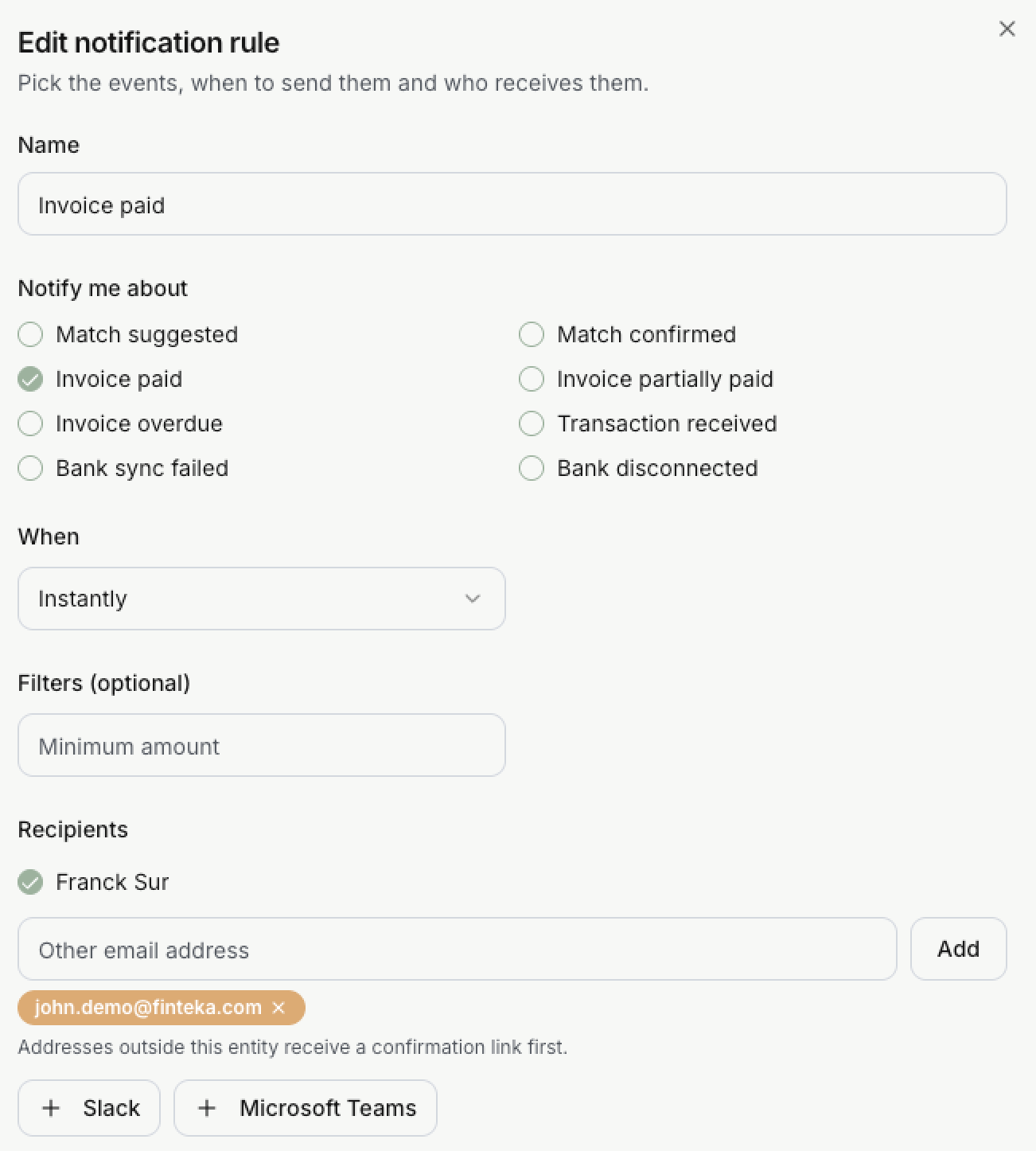
| Setting | Value | Why |
|---|---|---|
| Name | Invoice paid | Only a label. |
| Notify me about | Invoice settled | The rule reports invoices that are fully settled, not each installment. Add Invoice payment received or reversed to hear about every payment. |
| When | Instantly | Each payment is reported as it happens. Messages are grouped, so a busy minute sends one message. |
| Filters | Minimum amount left empty | Every amount is reported. A value would skip smaller invoices. |
| Recipients | An Entity member and an outside address | The outside address receives a confirmation link first and gets nothing until it confirms. |
Below the recipients, Slack and Microsoft Teams add a channel to the same rule. To set up Slack, follow Connect Slack to notifications.
The message
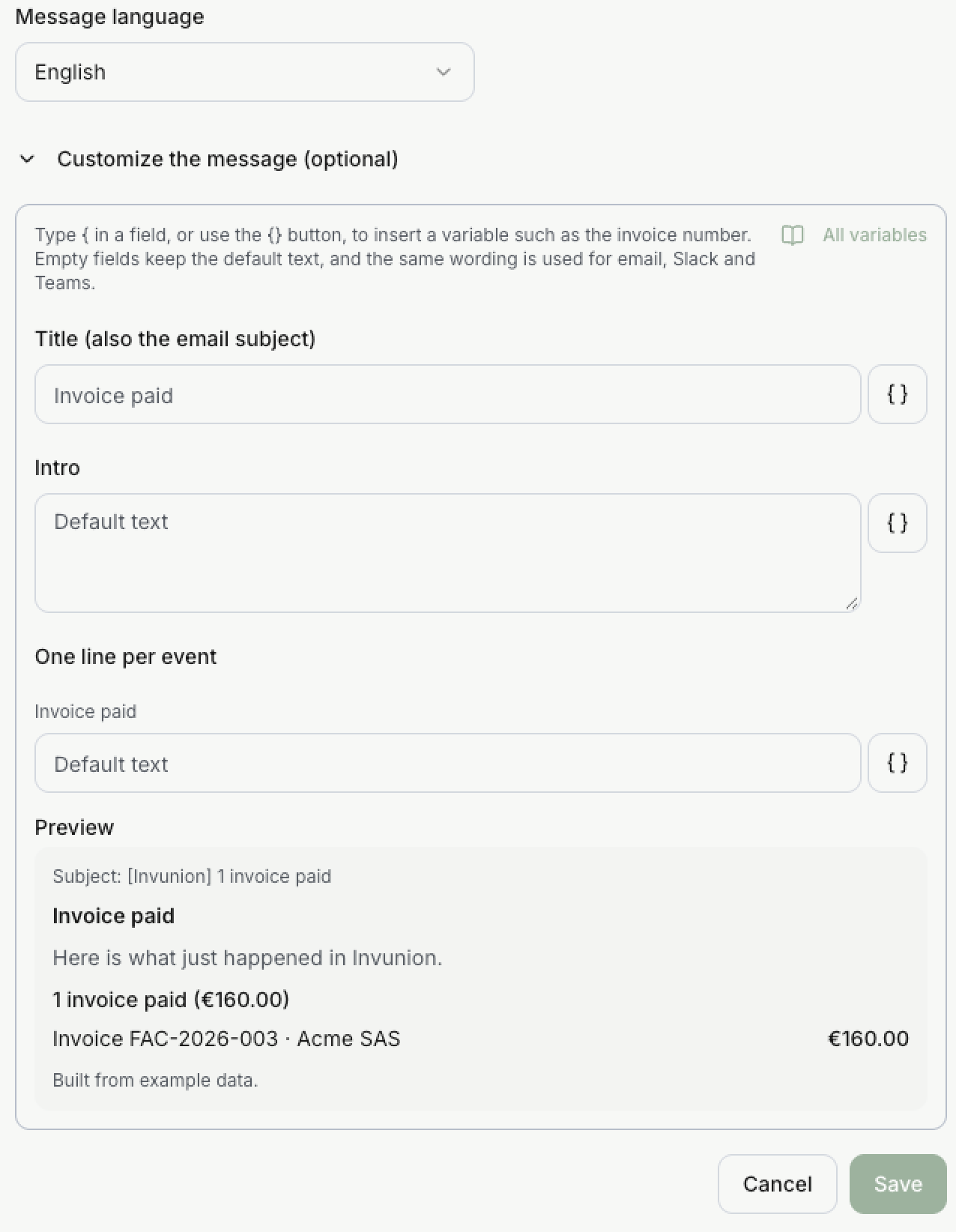
By default Invunion writes the title, the intro and one line per event. In Customize the message you can replace any of them. Type { in a field, or use the {} button, to insert a variable such as the invoice number. All variables lists them. Empty fields keep the default text, and the same wording is used for email, Slack and Teams. Unknown variables are rejected when you save.
The Preview shows the result from example data, so you can check the wording before you save:
- Subject:
[Invunion] 1 invoice settled. The title is also the email subject. - Intro: “Here is what just happened in Invunion.”
- Event line: “1 invoice settled (€160.00)”, then one row for the invoice with the customer and the amount.
Test and history
- Send test sends a message to every recipient of the rule.
- History lists the last 50 messages with time, recipient, number of events, and status: pending, sent, failed, or skipped. A badge on the rule counts failures in the last 24 hours.
- Failed sends are retried 5 times, after 1, 4, 16, and 64 minutes.
Limits to keep in mind
- A rule never replays old events. A new or re-enabled rule starts from the newest event.
- To feed your own systems instead of people, use Webhooks.
Updated · View as Markdown