Getting started in 2 minutes with a demo environment
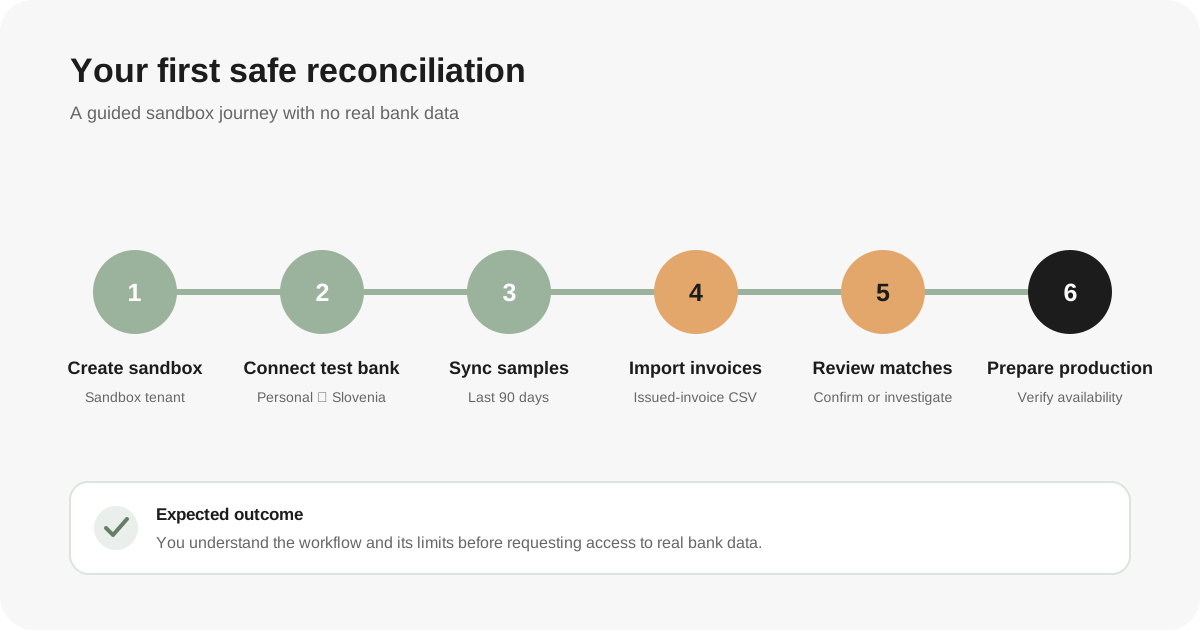
New Invunion tenants start in sandbox mode. Use the guided flow to connect Enable Banking’s Mock ASPSP with country SI and account type Personal, sync up to 90 days of sample transactions, import issued invoices from CSV, and inspect reconciliation suggestions without connecting a real bank account.
Browse documentation
This guided demo lets you test the current Invunion workflow with test banking data in about two minutes of focused setup. New tenants default to sandbox mode, so the banking connection uses Enable Banking’s test environment rather than a real bank.
Labels, navigation, and screen layout can change. The workflow described here reflects verified current behavior; if a label has moved, use the equivalent banking, issued-invoice, transaction, or reconciliation control.
Prerequisites
- An Invunion user account with access to a newly created or confirmed sandbox tenant.
- Permission to add a banking connection and import issued invoices.
- A small CSV containing issued invoices, or the synthetic issued-invoice sample. The issued-invoice import supports CSV with column mapping.
- A modern browser that permits the redirect to and from the Mock ASPSP.
Do not enter real bank credentials in this exercise. The Mock ASPSP is a test institution and does not need credentials for a real account.
Steps
-
Confirm the tenant is in sandbox mode. Open the dashboard and start the bank-connection flow. The connection dialog should identify sandbox mode and show test institutions. If the screen reports production mode or says the production provider is unavailable, stop and ask your Invunion administrator or support contact to confirm the tenant mode.
-
Start a test bank connection. In the connected internal bank accounts area, select Add or Connect my bank.
-
Choose the required sandbox options. Select country SI (Slovenia) and account type Personal. These values matter: the Mock ASPSP exposes the sample account with transactions for the Personal user type. The Business option can return a test card account with no sample transactions.
-
Select Mock ASPSP. Continue to the test-institution picker, choose Mock ASPSP, and complete its simulated authorization. You are redirected back to Invunion when the test consent finishes.
-
Check the first sync. Invunion creates the connection, discovers the test account, and immediately requests transactions from the last 90 days. Open Transactions and verify that sample entries are present. The 90-day window is a maximum request window; the sandbox only displays the test data supplied by Mock ASPSP.
-
Import issued invoices. Open Issued invoices, choose Import, select the CSV option, and upload your file. Map each source column to the corresponding Invunion field. Confirm that Total including tax is mapped, apply the mapping, and inspect the preview before importing.
-
Review reconciliation output. After transactions and invoices are available, inspect candidate matches. Scores of 80 or more are automatically confirmed, scores from 50 through 79 require review, and scores below 50 are ignored as candidates.
-
Complete one controlled reconciliation. Verify the transaction direction, amount, currency, date, invoice number or reference, and customer before accepting or creating a match. V1 is designed for incoming customer payments against issued invoices and outgoing refunds against issued credit notes.
Expected result
You have one active Mock ASPSP connection, a test account, sample transactions synchronized from the available 90-day window, and at least one issued invoice imported from CSV. You can see how Invunion proposes or records a reconciliation without using a real bank account.
Edge cases and troubleshooting
- No transactions appear: confirm that you chose Personal, not Business, and SI. Remove the test connection and repeat the connection if the wrong user type was selected.
- The connection succeeds but the list remains empty: use the sync icon on the active connection, then reload Transactions. If it still fails, capture the connection status and last-sync time.
- The invoice preview is empty: check the delimiter and mapping. A CSV may use commas, semicolons, or tabs. The total-including-tax field must produce valid invoice rows.
- Some invoices fail while others import: the import reports row-level errors and duplicates. Correct only the affected rows before retrying.
- No match appears: a candidate may be outside the score threshold or fail direction, currency, amount, or date filtering. Manual matching remains available for compatible records, but do not force unrelated items together.
Security and sandbox notes
Sandbox transactions are synthetic. Keep real customer, invoice, banking, and personal data out of shared demos. Tenant data remains separated by tenant context, but sandbox mode is not a reason to upload unnecessary sensitive information. Removing a banking connection preserves transactions already imported, so remove test data separately if your operating process requires it.
Sandbox behavior does not establish production availability. Do not treat a successful Mock ASPSP test as confirmation that a specific real bank is supported or ready for use.
Next step
Continue with Generate a test dataset to download invoices and bank lines that match your files, or Connect a test bank for the Mock ASPSP path.
Updated
Was this article helpful?
Feedback helps us improve the next version of this guide.